The Developer's Code Vibe: Optimizing Obsidian for Live Code Sync & Agentic Workflows
Pczio Team
Published
The Developer’s Code Vibe: Optimizing Obsidian for Live Code Sync & Agentic Workflows
The way we build software has fundamentally shifted. We no longer write every line of code by hand; we guide AI agents, iterate on designs, and orchestrate logic blocks. This high-speed, prompt-driven style is often called Vibe Coding.
But as you generate thousands of lines of code with models like Claude 3.5 Sonnet or Gemini 1.5 Pro, you face a new bottleneck: context management. Where do you keep your architectural decisions, prompt iterations, and code snippets organized? The answer is Obsidian. By configuring it correctly, you can turn Obsidian into the ultimate dashboard for your agentic coding workflows.
1. Why Obsidian is the Developer’s Canvas
Obsidian is powered by local Markdown files, making it incredibly fast, fully searchable, and offline-compatible. For developers co-working with AI, it offers three distinct advantages:
- No Vendor Lock-in: Your code documentation and prompt histories are just text files on your hard drive.
- The Graph View: Visualizing relationships between functions, APIs, and prompt templates.
- Code Block Friendliness: Native syntax highlighting for almost every programming language, making it feel like a lightweight IDE.
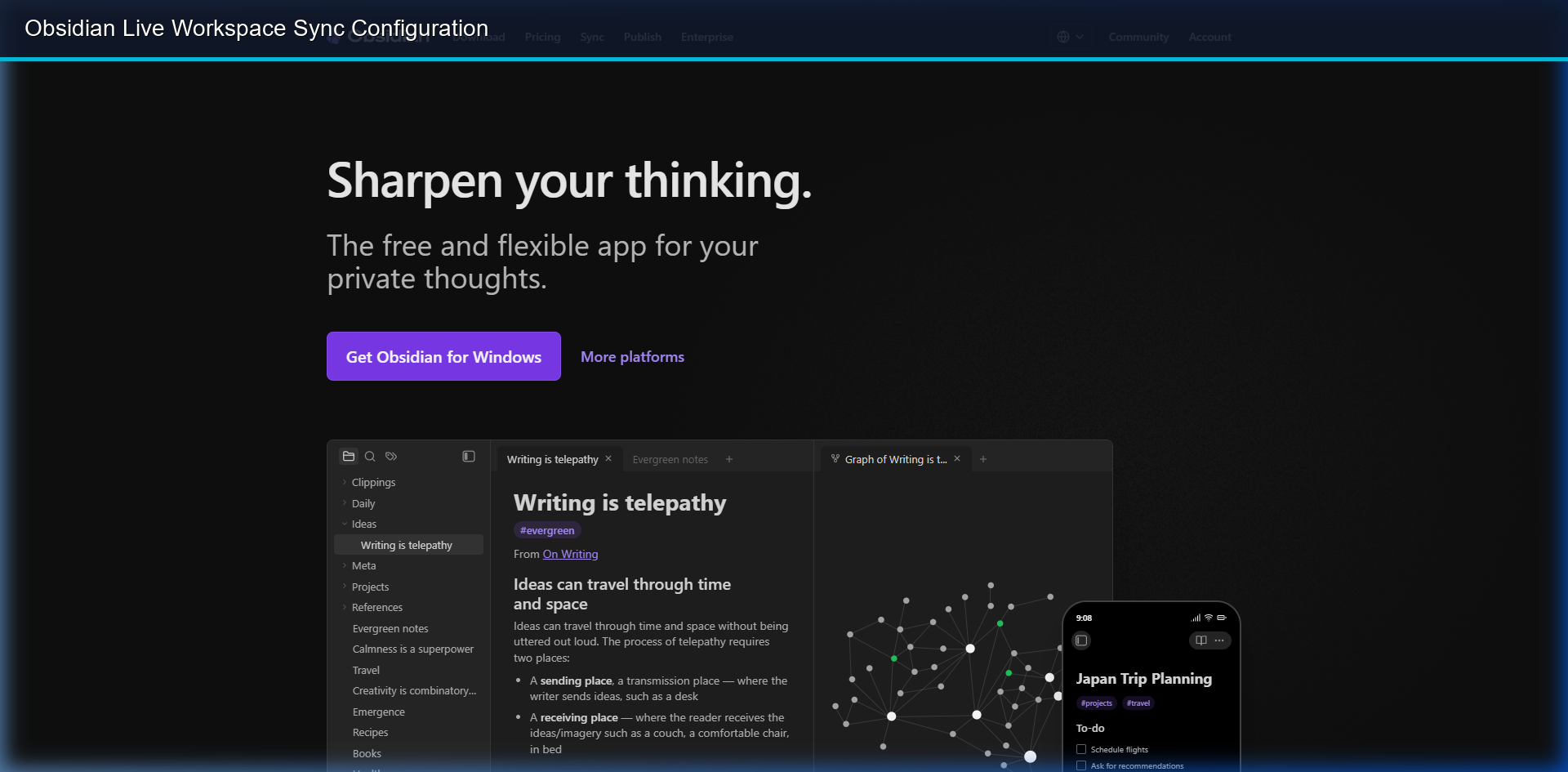 Managing project code references and documentation layouts inside a local Obsidian workspace.
2. Setting Up Obsidian for Live Code Sync
To make Obsidian work seamlessly with your active projects, you need to set up a bridge between your vault and your development folder.
Step A: The Vault Symlink
If your code lives in ~/projects/my-app and your notes live in ~/vault/, do not copy-paste code snippets. Instead, create a symlink. This allows your documentation to update live as you change files in VS Code.
# On Windows (cmd run as administrator):
mklink /d "C:\Users\User\Documents\Vault\my-project-code" "T:\projects\my-app\src"
Step B: Essential Community Plugins
| Plugin | Purpose | Benefit |
|---|---|---|
| BMO Chatbot | Connect Obsidian to local LLMs (via Ollama) | Query your local notes offline using Gemini/Hermes models. |
| Dataview | Query metadata inside markdown files | Automatically list all active code files tagged with #todo or #review. |
3. The Agentic Workflow: Prompts to Production
Here is the exact step-by-step workflow to co-work with AI agents using Obsidian:
graph TD
    A[Design Idea in Obsidian] -->|Export Prompt| B(AI Agent / Claude/Gemini)
    B -->|Generate Code & MD| C[Downloader Extension]
    C -->|Auto-save MD to Vault| D[Obsidian Code Vault]
D -->|Symlink/Sync| E[Running Project]- Write Specifications in Markdown: Draft your system prompt and interface specifications in Obsidian.
- Generate in the Browser: Run your prompts in ChatGPT or Gemini. Let the AI write the code blocks.
- Capture via Downloader: Use ChatGPT Downloader Pro or Gemini Exporter to save the conversation. Select Markdown format.
- Auto-save to Vault: Download the MD file directly to your Obsidian vault folder. The code blocks, checklists, and metadata will render instantly.
4. IP Protection and Local Advantage
Keeping your codebase and prompt libraries local is a major advantage. It ensures:
- IP Protection: Your proprietary algorithms and prompts never sit on third-party cloud sync servers.
- Zero Latency: Searching through 10,000 notes takes milliseconds because they are read directly from your local SSD.
[!WARNING] While symlinks are powerful, avoid committing your entire Obsidian
.obsidianconfiguration folder to your Git repository, as it contains local absolute paths and plugin states unique to your machine.
For a fully automated workspace, combine this setup with our guide on Building an Autonomous Second Brain with Obsidian Canvas to execute agent code directly from visual notes.
Tags