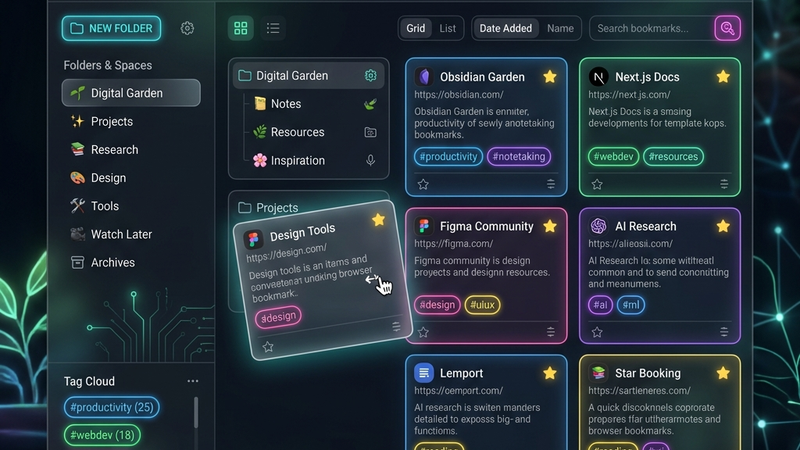
How to Clean and Organize Browser Bookmarks with Bookmark Organizer Pro
Pczio Team
Published
If you are like most internet users, your browser’s bookmark bar is a digital graveyard. It is easy to press Ctrl+D (or Cmd+D) to save an interesting article, a useful developer tool, or a product you want to buy. But over time, those bookmarks accumulate.
You end up with:
- Duplicate Bookmarks: The same link saved three different times in different folders.
- Dead Links (404s): Bookmarks pointing to websites that no longer exist or have moved.
- Empty Folders: Leftover folder structures from old bookmark cleanups.
- Unstructured Mess: No logical sorting, making it impossible to find what you need.
Manually cleaning hundreds of bookmarks is tedious. That is why we built Bookmark Organizer Pro—a professional, client-side browser extension that automates the cleaning and sorting process in a single click.
In this guide, we will show you how to set up and use the extension to turn your chaotic bookmark bar into a clean, searchable database.
Why Use Bookmark Organizer Pro?
Unlike online bookmark managers that require you to upload your data to third-party servers, Bookmark Organizer Pro runs entirely in your browser. Your bookmarks never leave your machine, ensuring absolute privacy and data sovereignty.
Key features include:
- Duplicate Finder: Detects and flags identical URLs so you can remove duplicates in bulk.
- Dead Link Scanner: Automatically pings bookmarked URLs locally to check if they return 404, 500, or connection errors.
- Empty Folder Cleaner: Recursively checks your bookmark structure and deletes folders that contain no links.
- Auto-Sorter: Sorts your bookmarks alphabetically or by date added to keep everything structured.
- Interactive Dashboard: A sleek, responsive dashboard built with modern glassmorphism design for easy navigation.
Step-by-Step Installation and Usage Guide
Step 1: Install the Extension
Navigate to the official Chrome Web Store listing for Bookmark Organizer Pro and click Add to Chrome.
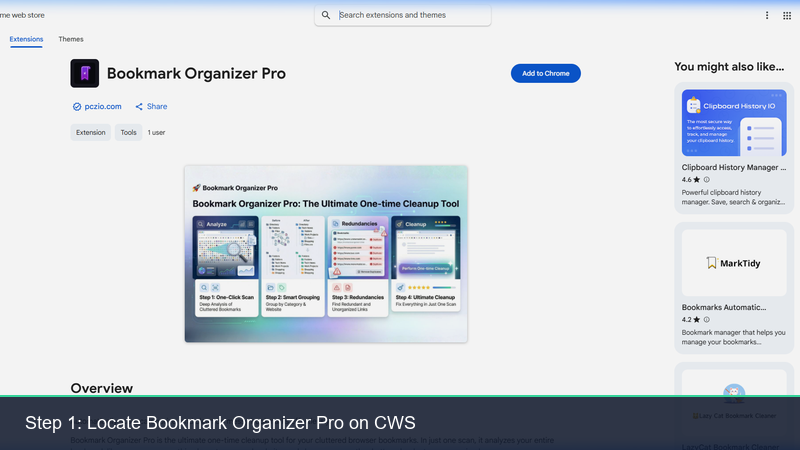
Verify that you are installing the official extension developed by Pczio.
Step 2: Open the Dashboard & Read Reviews
Once installed, click the Bookmark Organizer Pro icon in your browser’s extension bar. This will open the interactive dashboard. Here, you can review stats about your bookmark library, such as the total number of links, folders, and date ranges.
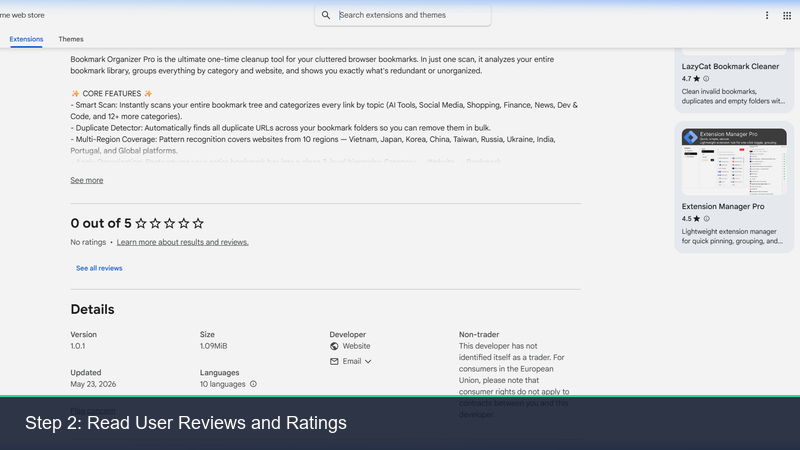
The dashboard displays a comprehensive breakdown of your current bookmark health.
Step 3: Run the Scanner and Clean Up
From the dashboard, choose the action you want to perform:
- Find Duplicates: The scanner will identify duplicate bookmarks. You can select all duplicates and delete them instantly while keeping one original.
- Scan Dead Links: The scanner pings your bookmarks to identify broken links. You can safely remove these outdated URLs.
- Clean Empty Folders: Remove empty directories that clutter your structure.
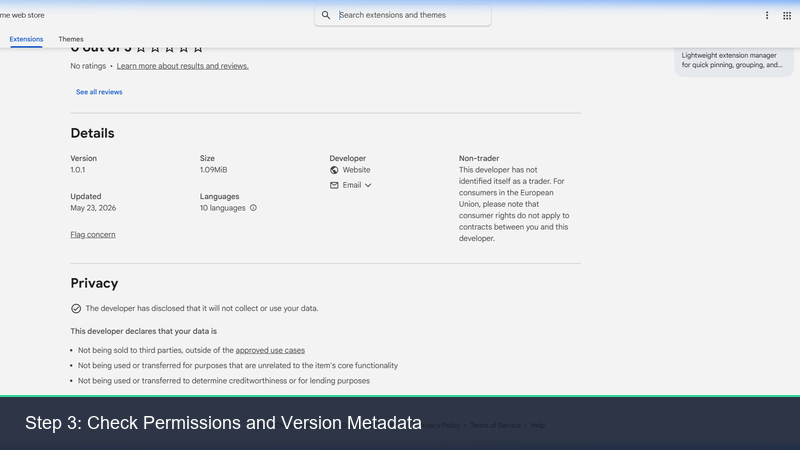
The extension operates completely offline and sandboxed, meaning your private bookmarks remain secure.
Advanced Workflows: Build a Better Knowledge Base
Once your bookmarks are clean, you can easily integrate them with your wider productivity stack:
- Export to Markdown: Clean bookmarks can be exported and organized into tools like Obsidian or Notion for a local Second Brain.
- Automate Research: Use other automation tools like Gemini Autopilot to process bookmarked lists or run automated summaries.
- Sync & Archive: Back up your clean bookmarks using extensions like the ChatGPT Downloader to keep a unified database of AI prompts and reference pages.
Conclusion
A clean browser workspace leads to a clean mind. Don’t let years of digital clutter slow down your research or development workflow. Spend two minutes running Bookmark Organizer Pro today and enjoy a clean, fast, and structured bookmark bar.
For questions or support, feel free to contact us at support@pczio.com or visit our Contact Page.
Tags