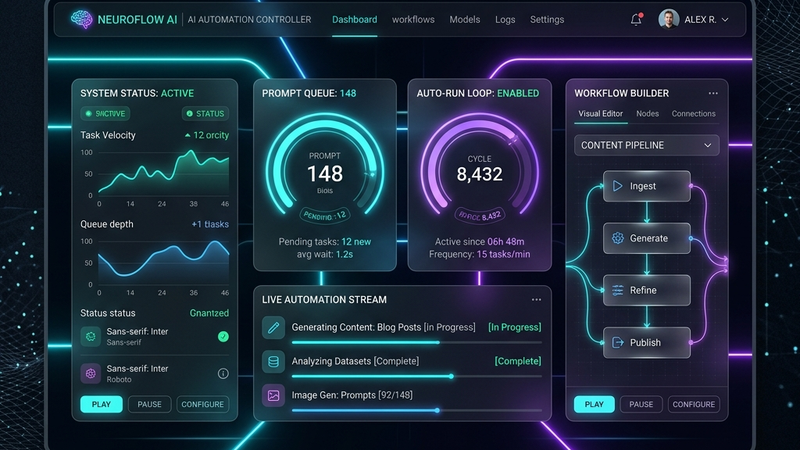
How to Automate Gemini Prompts with Gemini Autopilot: A Complete Guide
Pczio Team
Published
Unleashing Local Automation: The Ultimate Gemini Autopilot Guide
Artificial Intelligence excels at scale. However, manually copying, pasting, and waiting to submit dozens of prompts sequentially inside the Google Gemini interface is a major productivity bottleneck. If you are running bulk code audits, translating pages of copy, or executing repetitive analytical tasks, you need a way to queue and execute prompts automatically.
This is where the Gemini Autopilot Chrome extension comes in. Designed with a strict Local Storage Only philosophy, it allows you to load list-based prompt queues and let your browser do the hard work on autopilot.
In this step-by-step guide, we will demonstrate how to set up Gemini Autopilot, build automated workflows, and maximize your output without sacrificing your data privacy.
The Core Philosophy: You Own Your Resources
Unlike third-party cloud-based automation platforms that require you to upload your files, API keys, or proprietary data to their servers, Gemini Autopilot operates under a strict client-side architecture:
- Local Storage Only: All prompt queues, intermediate states, and histories live inside your browser’s sandboxed storage. No remote servers ever touch your prompts.
- No Third-Party AI APIs Required: It leverages the native web interface of Google Gemini, avoiding costly API billing rates.
- Complete Sovereignty: Your data never leaves your computer, satisfying corporate security compliance and protecting intellectual property.
This privacy-first approach is the perfect match for advanced workflows like Building a ‘Second Brain’ with AI and Markdown and maintaining a clean local vault of assets.
Step 1: Install Gemini Autopilot
Setting up the extension takes less than a minute. Let’s walk through the installation from the Google Chrome Web Store.
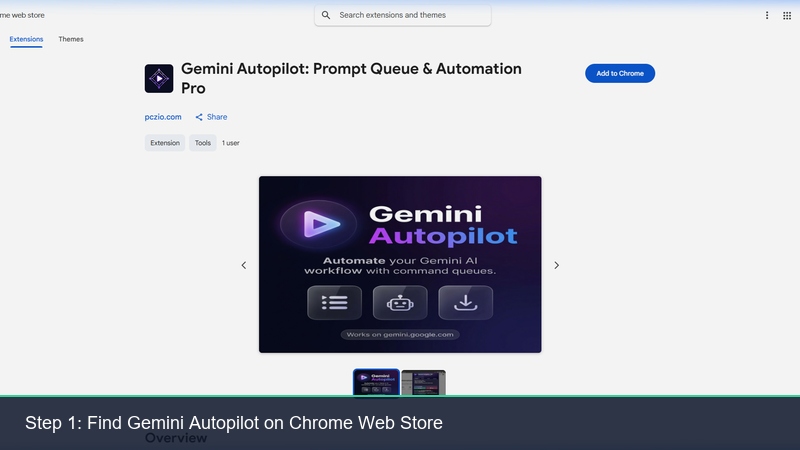
1. Locate the Extension Page
Open Chrome or any Chromium-compatible browser (such as Edge, Brave, or Opera) and navigate to the official extension listing:
Official Gemini Autopilot on Chrome Web Store
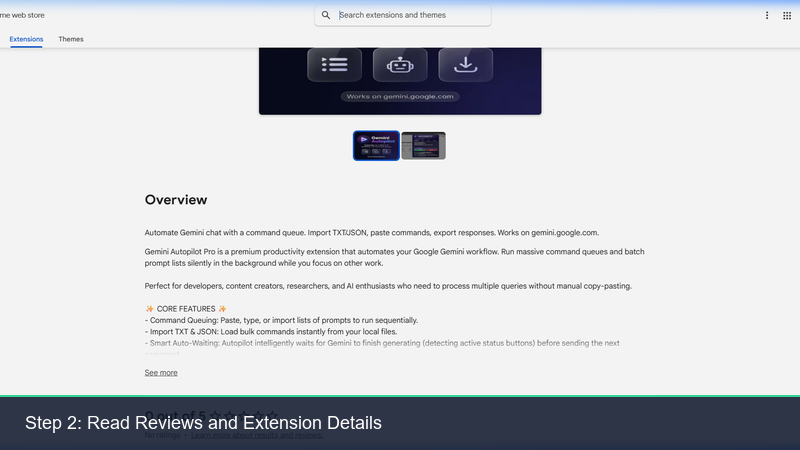
2. Check Extension Metadata
Verify the publisher and review details to ensure you are downloading the official tool.
3. Click “Add to Chrome”
Click the blue “Add to Chrome” button. Confirm the permissions dialog to authorize access to gemini.google.com.
Security Note: The extension requests permission to interact with the Gemini web app tab so it can programmatically input text blocks and trigger click events on the submission button. It contains no telemetry code or network trackers.
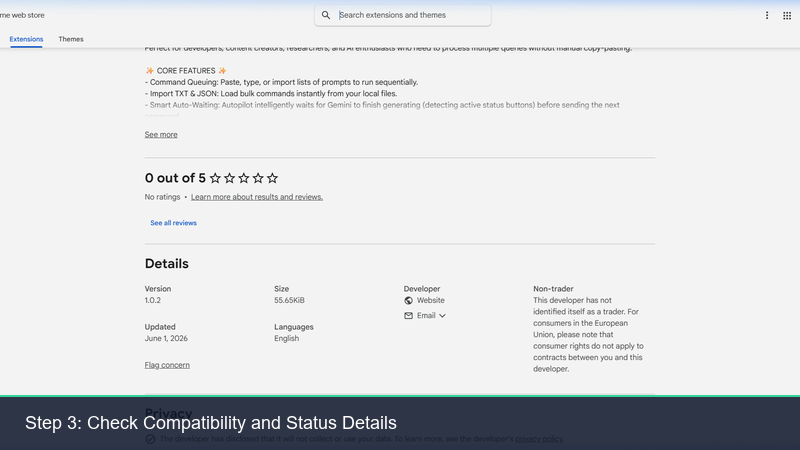
Confirm by selecting “Add Extension”. The extension will now be active in your toolbar list.
Step 2: Running Automated Prompts
Once installed, you can access the queue panel directly inside the Google Gemini workspace.
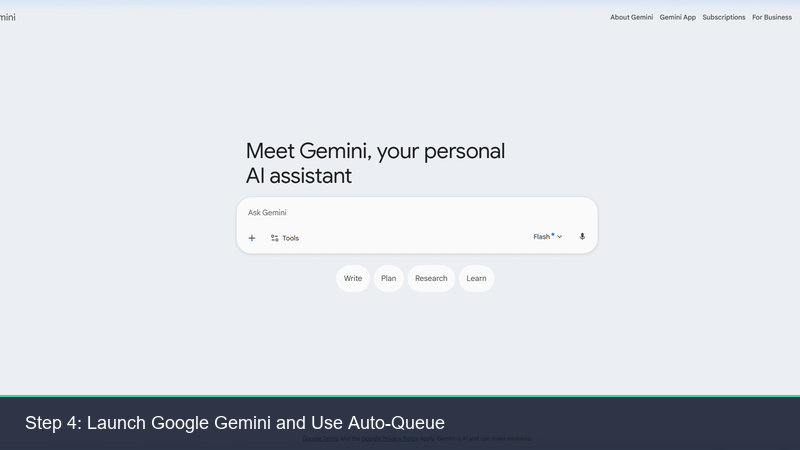
1. Open Google Gemini
Head to https://gemini.google.com and log in.
2. Load Your Prompt Queue
Click the Gemini Autopilot popup in the browser bar or the sidebar panel within the web page. You can input prompts in three ways:
- Manual Bulk Input: Paste multiple prompts separated by line breaks.
- JSON Batch Array: Load a list of structured prompts with custom parameters.
- Variables Template: Create a template such as: “Translate the following text to French: [text]” and upload a CSV of variables.
3. Start Autopilot
Set the delay between submissions (useful for letting Gemini generate long responses or staying within rate limits) and click “Run Autopilot”.
The script will take control, typing your first prompt, submitting it, monitoring the output container until completion, waiting for your defined interval, and then automatically triggering the next prompt in the queue.
Advanced Integration: Building an Autonomous Library
Automating prompt execution generates a large volume of high-quality outputs. By combining Gemini Autopilot with our export tools, you can easily save and organize your bulk results:
- Auto-Downloader Pairing: Use the Gemini Conversation Downloader Guide (or Claude Conversation Downloader Guide if using Anthropic models) to export the entire automated chat session into a clean Markdown or JSON file.
- Obsidian Sync: Drop your markdown files directly into your Obsidian database. You can leverage Obsidian’s graph network to index and link your bulk results, establishing a state-of-the-art Autonomous Second Brain or orchestrating a Multi-Agent Coworking environment.
- Workspace Optimization: Automating repetitive tasks lets you focus on coding style, creating the ultimate Developer Code Vibe in your development environment.
Premium Autopilot Upgrades
For developers and power users executing large tasks, you can unlock the Pro tier of Gemini Autopilot to access advanced queue structures and custom delays.
Upgrade and Purchase Gemini Autopilot Pro
The Pro subscription upholds our core philosophy: it stores all licenses and workspace parameters locally (Local Storage Only), ensuring you have full custody of your resources.
FAQ (Frequently Asked Questions)
Q1: Does the extension stop if Gemini encounters a network error?
Yes. The extension is built to detect error bubbles. If Google Gemini experiences a network break or a timeout, Autopilot pauses the queue and alerts you, allowing you to resume from the exact position once resolved.
Q2: Can I run Autopilot in background tabs?
For maximum reliability, it is recommended to keep the Gemini tab visible in its own window. You can continue working on other tasks or applications in separate windows while the script runs in the foreground of its dedicated browser session.
Q3: Is Microsoft Edge supported?
Yes. Microsoft Edge is fully compatible. You can download the extension directly from the Chrome Web Store on Edge or Brave.
Workflow Comparison
| Feature | Browser Default | Gemini Autopilot |
|---|---|---|
| Prompt Input | One-by-one manual | Bulk list/CSV queues |
| Execution | Manual wait and click | Automated sequential submission |
| Data Flow | Interactive session | Set-and-forget background pipeline |
| Storage Architecture | Cloud account history | Local-First / Local Storage Only |
Stop pasting prompts manually. Automate your AI research pipeline securely. Download Gemini Autopilot from the Chrome Web Store and supercharge your AI workflows today.
Tags