How to Export ChatGPT Chats to Markdown and JSON: The Ultimate Guide
Pczio Team
Published
We use ChatGPT for everything: coding, brainstorming, writing, and research. However, relying entirely on OpenAI’s cloud-saved history is risky. A server outage, accidental account suspension, or simple browser lag can erase hours of valuable intellectual output.
Furthermore, standard copy-pasting from the ChatGPT interface ruins formatting—destroying code blocks, lists, and headings.
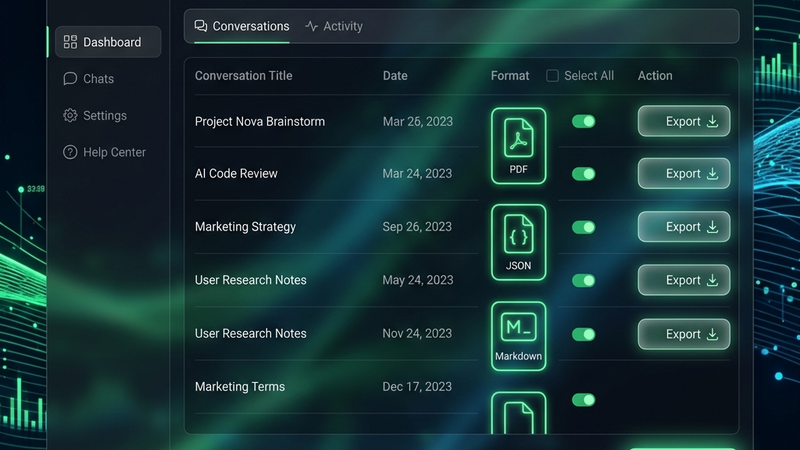
That is why we developed ChatGPT Downloader: Export to Markdown/JSON—a professional-grade browser extension that allows you to download and archive your entire ChatGPT history locally with a single click.
In this guide, we will show you how to set up the extension and integrate it with your personal knowledge base.
Why Export Your ChatGPT History?
Exporting your chats isn’t just about saving text. It is about building a searchable, offline archive of your interactions.
Key advantages include:
- Clean Markdown Output: Automatically formats code blocks, tables, bold text, and lists correctly, ready to drop straight into tools like Obsidian or Notion for a local Second Brain.
- Detailed JSON / CSV Data: Perfect for developers building RAG (Retrieval-Augmented Generation) pipelines or fine-tuning models.
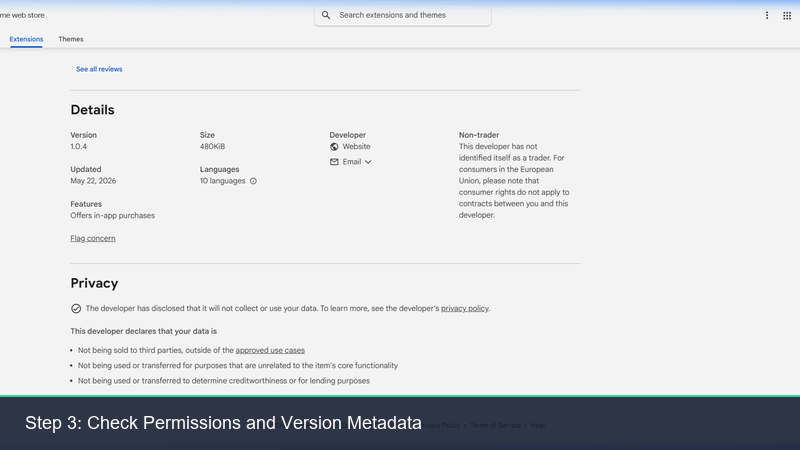
- Completely Local & Private: Unlike other tools, our downloader processes your chat logs strictly on your machine. Your conversations are never sent to external servers.
- Supports All Prompts & Media: Downloads text, system prompts, output timestamps, and correctly references embedded images.
Step-by-Step Installation and Usage Guide
Step 1: Install the Extension
Go to the official Google Chrome Web Store page for ChatGPT Downloader and click Add to Chrome.
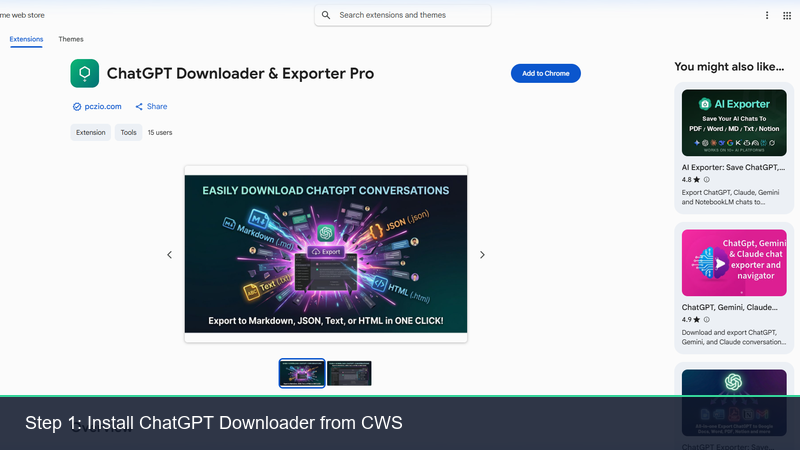
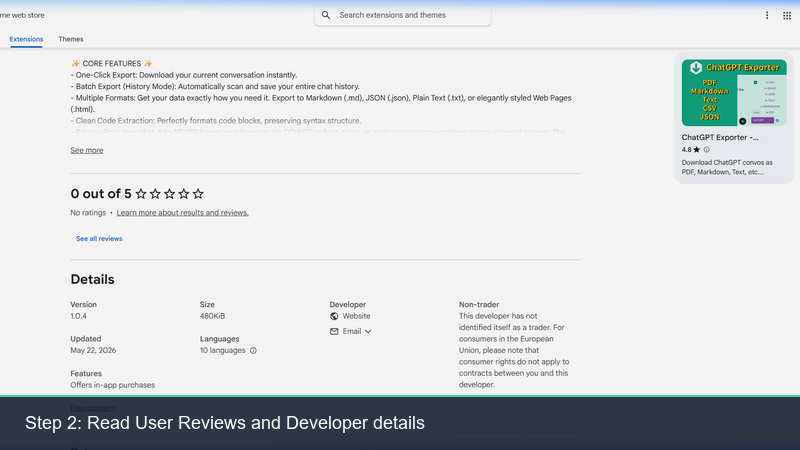
Verify that you are installing the official extension developed by Pczio.
Step 2: Open ChatGPT & Start Downloading
Once installed, navigate to chatgpt.com. You will see a new floating download widget or panel integrated seamlessly into the right side of the screen.
The downloader panel offers multiple export format options (Markdown, JSON, HTML, CSV).
Step 3: Choose Format and Save
Select your preferred format (e.g., Markdown for documentation, JSON for data processing) and click the download button. The file is saved directly to your local downloads folder instantly.
The extension runs completely client-side to ensure maximum security for your private chats.
Combining ChatGPT Downloader with Your Workspace
A local archive of your AI chats unlocks powerful workflows:
- Tag & Link: Store your exports in folders and use Bookmark Organizer Pro to organize research references alongside your markdown notes.
- Automate Queries: Build prompt templates from your best discussions and queue them up in Gemini Autopilot to automate workflows across other models.
- Semantic Search: Index your Markdown files locally using desktop search tools to recall solutions or code snippets in seconds.
Conclusion
Your AI chat history is a valuable intellectual asset. Don’t leave it locked inside a closed cloud ecosystem. Use ChatGPT Downloader today to take control of your data.
If you have any questions, reach out to us at support@pczio.com or visit our Contact Page.
Tags