Designing Markdown Skill Files: Orchestrate Antigravity, Claude Code, and Codex
Pczio Team
Published
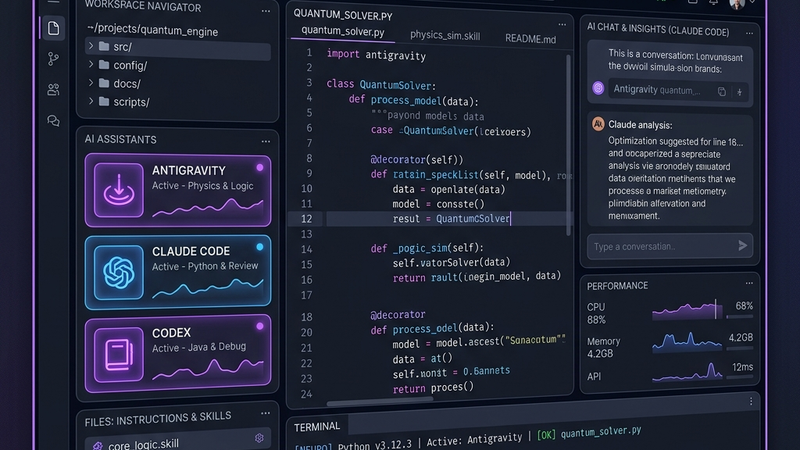
The landscape of software development is shifting from direct LLM prompt chat panels to autonomous agentic IDEs. Modern terminal-based AI coding assistants—such as Antigravity, Codex, and Claude Code—can read, write, edit, compile, and debug code directly in your workspace.
However, to get high-quality outputs from these agents, you shouldn’t just feed them vague queries. You need structured, deterministic guidelines.
This is where Markdown Skill Files (such as seo-content-skill.md) come in. A Skill file is a localized markdown document detailing the architecture, constraints, libraries, linting rules, and step-by-step tasks that an AI agent should follow.
In this guide, we will show you how to design these Skill files, how to export them from web-based AIs using dedicated download tools, and how to feed them as instructions into your agentic IDE workflows.
1. Anatomy of a Perfect AI Skill File
An AI Skill file is a markdown file placed in your workspace (or scratch directory) that acts as the “mental blueprint” for the coding agent. A good Skill file should follow this structure:
# [Skill Title/Name]

## Context & Objectives
Briefly explain the target feature, system state, and overall goal.

## System Stack & Dependencies
* Core: [e.g., Next.js 14, Astro 4.0]
* Libraries: [List precise packages and versions]

## Architectural & Coding Constraints
* No Tailwind CSS unless requested.
* Use native API endpoints.
* Keep functions pure and modular.

## Step-by-Step Instructions
1. [Step 1: Description]
2. [Step 2: Description]

## Validation & Success Checklist
* [ ] Run npm run build successfully.
* [ ] Check for linting errors.
2. Generating & Downloading Skill Files from Web AIs
Designing a complex Skill file from scratch can be time-consuming. The easiest workflow is to co-create the skill in a chat session with Google Gemini, ChatGPT, or Anthropic Claude, and then export it to your workspace.
To export the raw, formatted markdown from your chat sessions:
- Google Gemini: Use the Gemini Conversation Downloader to export the session containing the skill parameters to a clean
.mdfile. - Anthropic Claude: Use the Claude Conversation Downloader to download your prompts and structural code blocks.
- ChatGPT: Use the ChatGPT Downloader to retrieve the raw Markdown output including nested code tables.
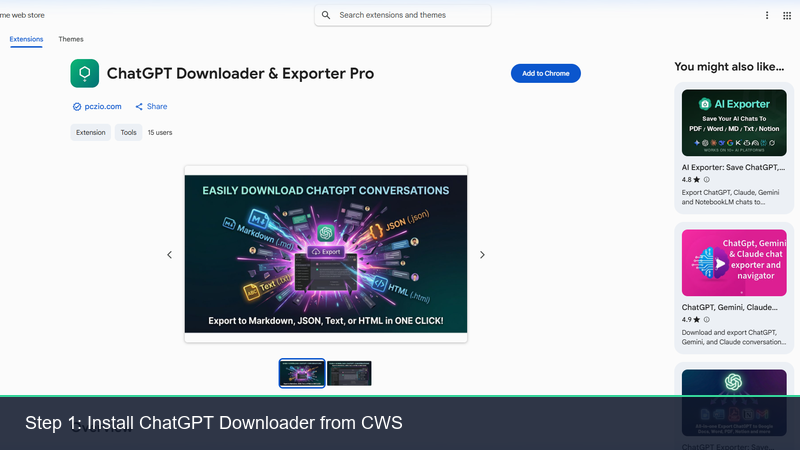
Using specialized download tools ensures formatting like tables, headers, and code fences are preserved exactly as text.
3. Feeding Skill Files into Agentic IDEs
Once you have saved the .md skill file to your workspace, you can inject it directly into the context window of your IDE coding assistant:
A. Antigravity IDE Agent
In Antigravity, you can feed a Skill file by setting the IsSkillFile parameter to true when using the workspace file reader, or by opening the file directly:
{
  "AbsolutePath": "C:\\workspace\\my-project\\seo-content-skill.md",
  "IsSkillFile": true
}
Antigravity parses the contents, understands the instructions as high-priority behavioral constraints, and executes the code changes according to your blueprint.
B. Claude Code (CLI)
When running Claude Code in your terminal, you can direct the agent to read and follow the skill file using file paths in your prompt:
claude "Read the instructions in docs/skills/setup-guide.md and build the payment flow accordingly"C. Codex
For Codex, you can reference the skill file in your system instructions or append it directly to the prompt payload during agent execution.
4. Organizing Skill Files with Bookmark Organizer Pro
As you develop more projects, you will compile a library of reusable Skill files (e.g., auth-setup-skill.md, supabase-sync-skill.md, eslint-config-skill.md).
To organize this digital library, keep links to these files or their online versions saved in your bookmarks bar. You can use Bookmark Organizer Pro to manage this knowledge library:
- Deduplicate: Clean up duplicate reference links saved during frantic coding sessions.
- Scan Links: Verify that the documentation URLs or internal server links in your bookmark base are not broken.
- Folder Structure: Group your skill templates by category (e.g., “AI Templates”, “CI/CD Rules”, “Linting Standards”).
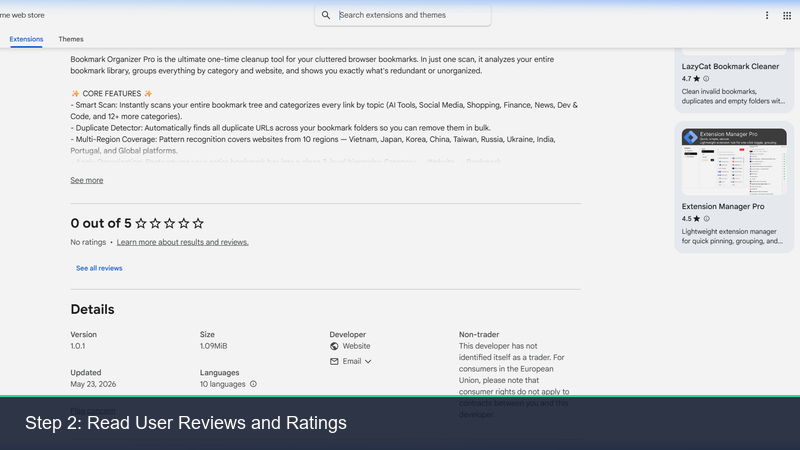
Keeping your reference links organized ensures fast access to blueprints during coding.
Summary
Combining web-based AI prompt design, local file downloads, and IDE coding agents creates a powerful development loop:
graph TD
    A[Co-design Skill with Web LLM] --> B[Download Markdown with Downloader Extensions]
    B --> C[Save .md Skill File in Workspace]
    C --> D[Feed Skill File to IDE Agent e.g., Antigravity, Claude Code]
    D --> E[Execute Tasks & Compile Code]
    F[Bookmark Organizer Pro] -->|Catalog & Clean Links| C
By transitioning to structured Skill files, you increase the reliability of your coding agents, eliminate repetitive prompting, and maintain consistent quality across your codebases.
For more automation templates, check out our Gemini Autopilot Guide or contact the team at support@pczio.com.
Tags