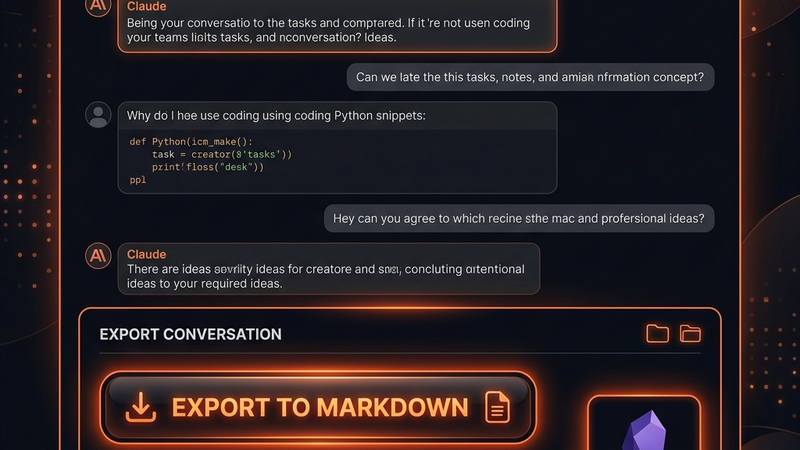
How to Download Claude Conversations to Markdown: A Complete Step-by-Step Guide
Pczio Team
Published
Backing Up Your Intelligence: The Ultimate Claude Export Guide
Anthropic’s Claude (including the latest Claude 3.5 Sonnet and Opus models) is the absolute gold standard for programming, reasoning, and conceptual writing. Whether you use it to scaffold frontend code, refine complex database queries, or write marketing hooks, your interactions inside the chat represent a significant intellectual asset.
However, relying entirely on the browser-based cloud storage of Claude.ai poses substantial risks. Cloud-hosted history can experience outages, search within a long scroll history is tedious, and old threads can eventually clutter your workspace or be subject to changes in data policies.
To establish a resilient, offline, and searchable repository—what productivity experts refer to as a Second Brain—you need the ability to archive your Claude chats locally. In this guide, we will walk you through installing and using the Claude Conversation Downloader to export your conversations as clean Markdown (.md) and structured JSON files in a single click.
Why Export Claude Chats to Markdown?
Before installing, let’s explore why Markdown is the premier format for building a personal knowledge vault:
- Absolute Data Ownership: Markdown files reside locally on your solid-state drive. You own them forever, free from subscription lock-ins or cloud downtime.
- Seamless Vault Integration: Markdown is the native layout language for modern knowledge systems like Obsidian, Logseq, Bear, and Notion.
- Flawless Code Block Preservation: For developers, Markdown maintains the exact indentations, syntax highlighting, and clean spacing of code outputs, preventing the messy text wraps of manual copy-pasting.
- Instant Offline Searchability: Search through thousands of chat-logs instantly using desktop tools like Grep, Everything, or Obsidian’s built-in search.
For users seeking to structure their digital lives, this workflow is a natural companion to Building a ‘Second Brain’ with AI and Markdown and optimizing your developer environment with the perfect Developer Code Vibe.
Step 1: Install Claude Conversation Downloader
The safest way to export your conversations is through the official Chrome Web Store extension, built to run locally in your browser.
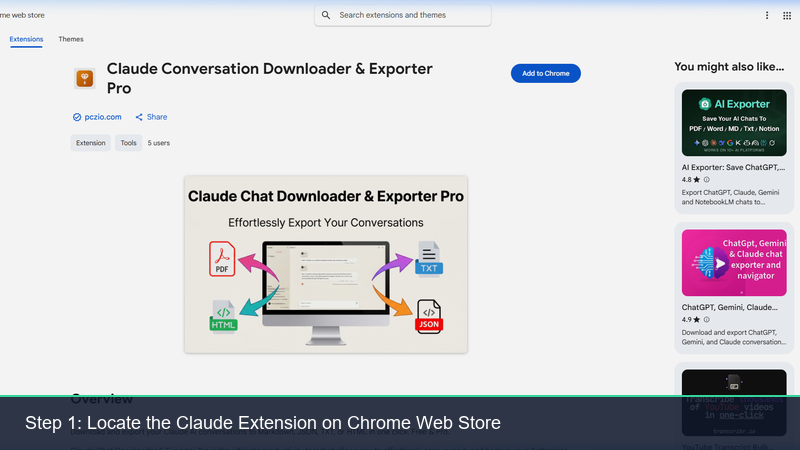
1. Locate the Extension on the Chrome Web Store
Open Google Chrome or any Chromium-based browser (Brave, Edge, Opera, Vivaldi) and navigate to the official store listing:
Official Claude Conversation Downloader Page
2. Verify Extension Details
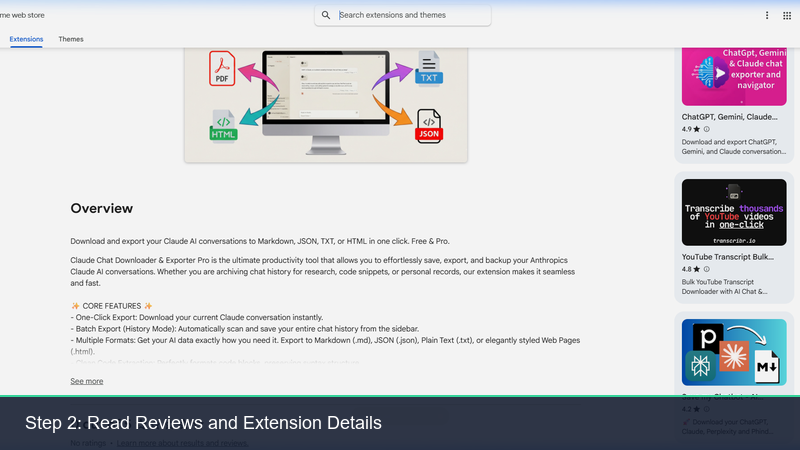
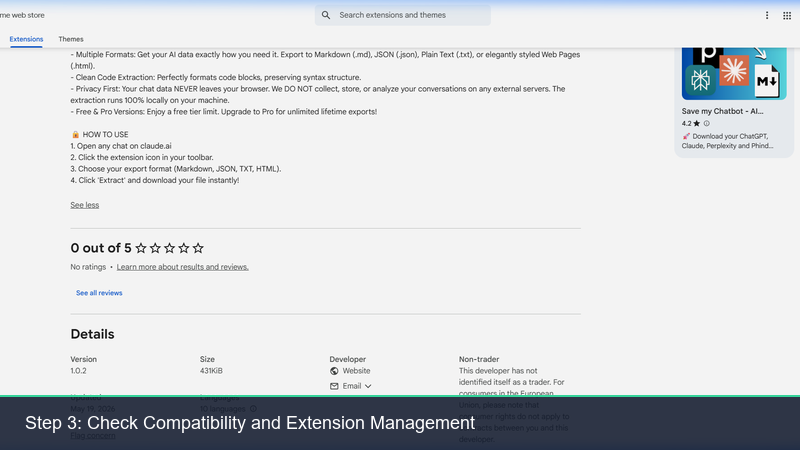
Confirm that the publisher is official and check the details. The extension is engineered to process data entirely client-side, ensuring that your chat history remains 100% private.
3. Click “Add to Chrome”
Select the blue “Add to Chrome” button. A browser dialog will display asking for permission to read and change data on claude.ai.
Security Note: The extension only requests access to the Claude subdomain to read the text nodes of your active chat container in order to compile the file. It operates under a strict Local Storage Only philosophy—your chats are never uploaded, analyzed, or shared with third parties.
Click “Add Extension” to confirm. Once installed, the extension icon will appear in your extensions dropdown in the upper right.
Step 2: How to Export Your Claude Chats
With the extension active, downloading your chats takes only a single click.
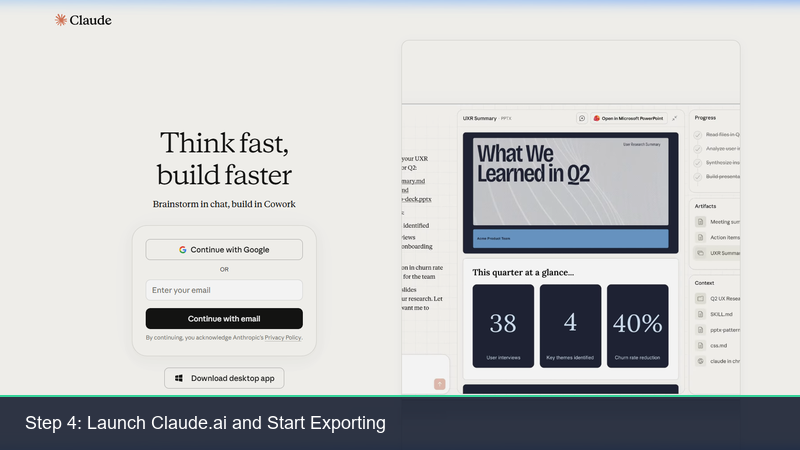
1. Open Claude.ai
Navigate to the official Claude web workspace and log in.
2. Open Any Chat Thread
Select a conversation from your history panel. Once the conversation is active on your screen, click the extension icon on your browser toolbar.
3. Click Download Markdown or JSON
Select your preferred download format from the extension’s clean user interface:
- Export to Markdown (.md): Generates a formatted document with correct headers, lists, code fences, and emphasis markings. This is perfect for drop-in use inside Obsidian.
- Export to JSON (.json): Outputs a structured data array. This is perfect for developers building RAG (Retrieval-Augmented Generation) pipelines, custom AI search engines, or training datasets.
Save the file to your hard drive, and the export is complete!
Advanced Integration: Powering Your Obsidian Vault
To make the most of your exported chats, integrate them into a local markdown vault. This creates a cohesive setup similar to the Autonomous Second Brain workflow or a Multi-Agent Coworking workspace.
Option A: The Direct Vault Drop
Save your downloaded .md files directly inside your Obsidian vault folder. Obsidian instantly indexes the text, allowing you to use double-bracket links [[Note Name]] to connect AI solutions directly to your software specs or project roadmaps.
Option B: Building a Prompt & Snippet Library
Create a directory named Claude Snippets or AI Archive. Every time Claude helps you solve an architectural design block, debug a React render loop, or write a shell script, download the chat. This compiles a personalized, searchable offline stack-overflow customized to your coding style.
If you are using Google’s ecosystem alongside Anthropic’s, you can also view our Gemini Conversation Downloader Guide to implement a unified, multi-platform backup routine.
Technical Specifications: Local-First Privacy
Unlike online converters that require uploading your conversations to external servers, this extension is designed around strict security guidelines:
- No Server-Side Storing: All DOM traversal and conversion happen in the memory sandbox of your active tab.
- No Telemetry Tracking: There are no embedded tracking scripts or usage metrics sent to external endpoints.
- Corporate Safe: Ideal for enterprise developers who must log their AI dependencies without risking code disclosure.
FAQ (Frequently Asked Questions)
Q1: Does the extension support Claude’s Artifacts?
Yes. If you have code snippets, SVG assets, or interactive UIs open in Claude’s side-by-side Artifacts panel, they are fully captured and saved inside your Markdown or JSON output files.
Q2: Can it export very long chat threads?
Absolutely. The parsing engine is highly optimized to run recursively through the chat feed, compiling large code blocks and text segments without causing browser lag.
Q3: Can I run this extension in Microsoft Edge?
Yes! Since Microsoft Edge, Brave, and Opera are built on the Chromium engine, they fully support extensions from the Chrome Web Store. Simply visit the store page in those browsers and click add.
Features Comparison
| Feature | Manual Copy-Paste | Claude Downloader |
|---|---|---|
| File Format | Unstructured Clipboard | Markdown (.md) / JSON (.json) |
| Code Formatting | Spacing and indentation errors | Flawless preservation with syntax tags |
| Speed | Slow manual highlighting | 1-Click instant download |
| Data Privacy | Subject to clipboard history logs | 100% Client-side sandbox |
Never lose another valuable insight. Secure your knowledge vault by downloading the Claude Conversation Downloader from the Chrome Web Store today.
Tags