How to Download Gemini Conversations to Markdown: A Complete Step-by-Step Guide
Pczio Team
Published
Backing Up Your Intelligence: The Ultimate Gemini Export Guide
Google Gemini is one of the most powerful conversational AI assistants available today. Whether you are using it to debug complex Python backend systems, draft marketing copy, or brainstorm structural ideas for your business, your chat history represents a valuable intellectual asset.
However, relying solely on Google’s cloud storage to hold your chat history is a risk. Interface updates can break old chat links, platforms experience downtime, and searching through hundreds of old conversations in a tiny browser sidebar is highly inefficient.
To build a secure, searchable, and permanent Second Brain, you need a way to download your Gemini conversations locally. In this guide, we will show you how to install and use the Gemini Conversation Downloader to export your chats to clean Markdown (.md) and JSON format in just one click.
Why Export Gemini Chats to Markdown?
Before we jump into the installation guide, let’s understand why Markdown is the absolute best format for archiving your AI conversations:
- Local Ownership: Markdown files live on your computer. You own them, search them, and back them up using standard tools.
- Platform Portability: Markdown is supported by all popular personal knowledge base tools, including Obsidian, Notion, Logseq, and Bear.
- Clean Code Isolation: If Gemini generates script code blocks, markdown preserves the code formatting and syntax highlighting perfectly.
- Offline Search: You can search through months of research offline in milliseconds using desktop search tools.
Step 1: Install Gemini Conversation Downloader
The easiest and safest way to export your chats is by using the official Chrome Web Store extension. Let’s walk through the installation process.
1. Navigate to the Chrome Web Store
First, open your Google Chrome or Chromium-based browser (such as Microsoft Edge, Brave, or Opera) and navigate to the official store page:
Official Gemini Conversation Downloader Page
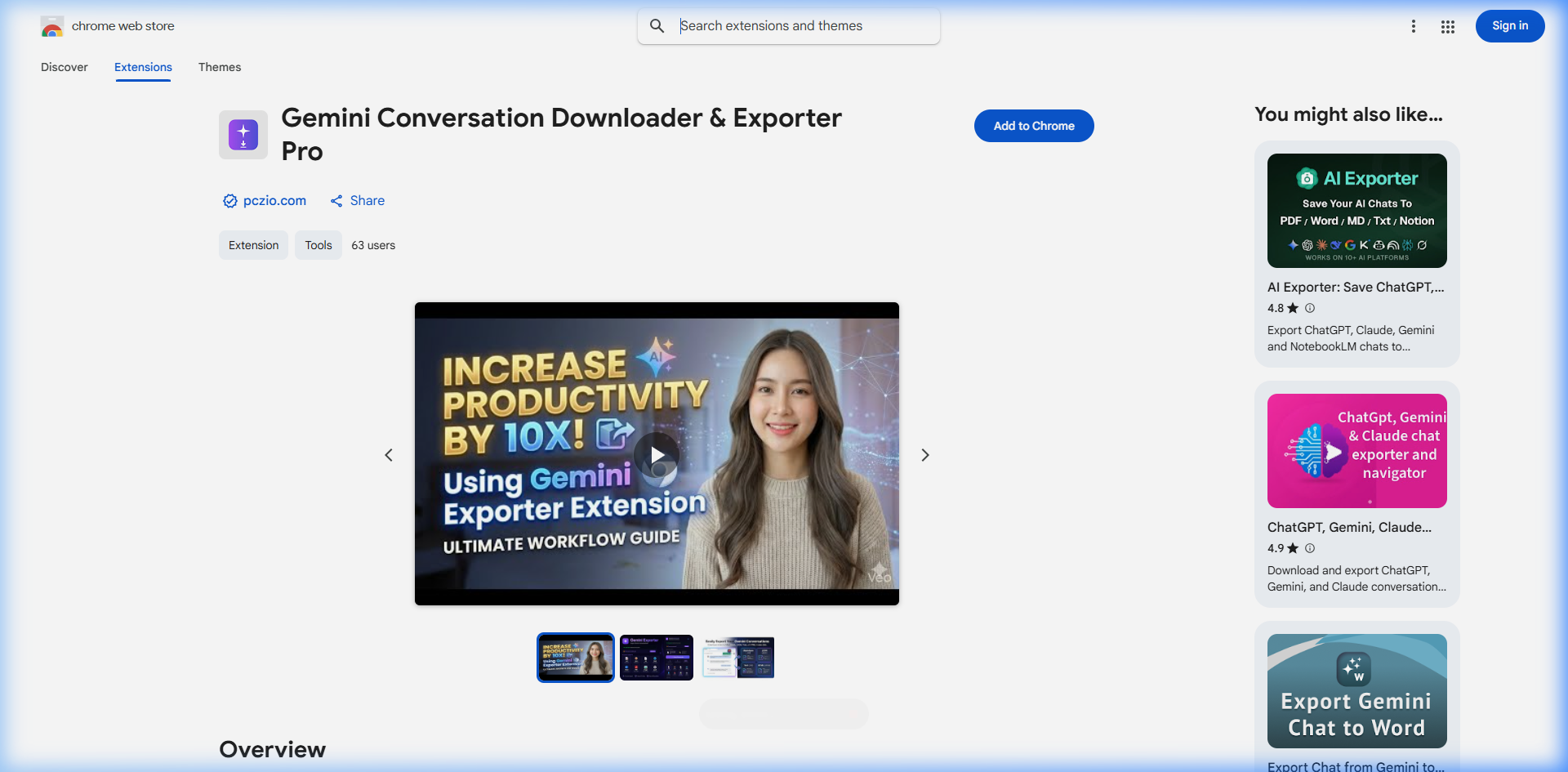
2. Verify Extension Metadata and Details
Always ensure you are installing the correct extension. The extension is built specifically to operate locally inside your browser without sending any chat data to external servers.
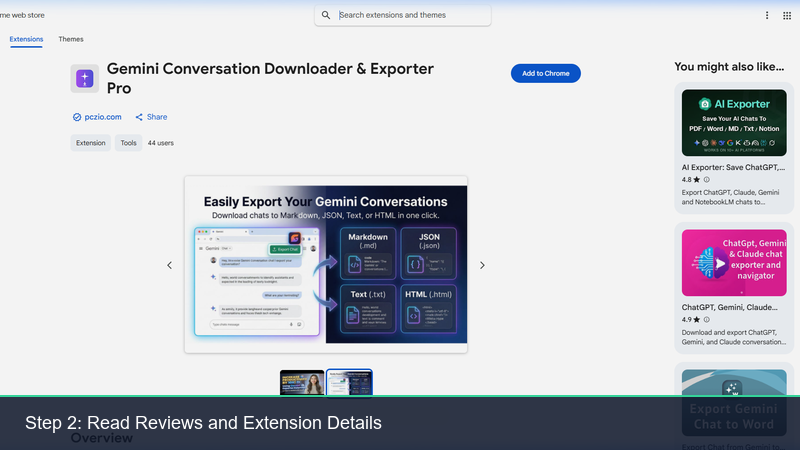
3. Click “Add to Chrome”
Click the blue “Add to Chrome” button. A popup will appear asking for permissions to read and modify data on gemini.google.com.
Security Note: The extension only requests access to the Google Gemini subdomain so it can read the text elements of your active chat to compile the export file. No background servers or external analytical endpoints are used.
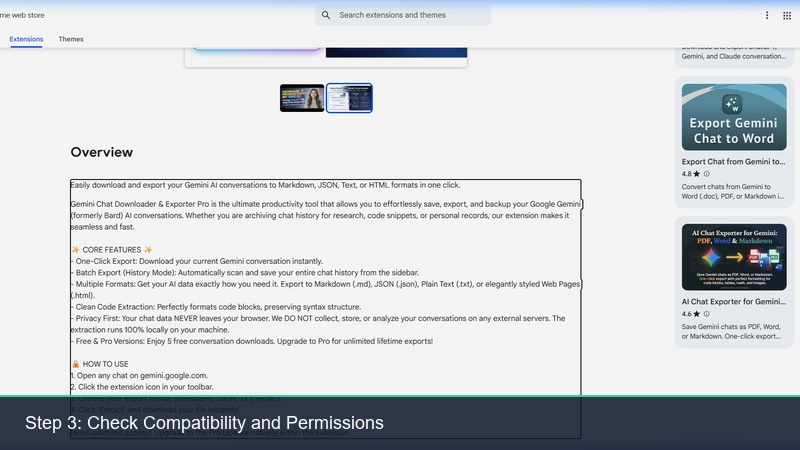
Confirm the prompt by clicking “Add Extension”. The installation will complete in a few seconds, and the extension icon will appear in your browser’s toolbar.
Step 2: How to Export Your First Chat
Now that the extension is installed, let’s head over to Google Gemini and run a test export.
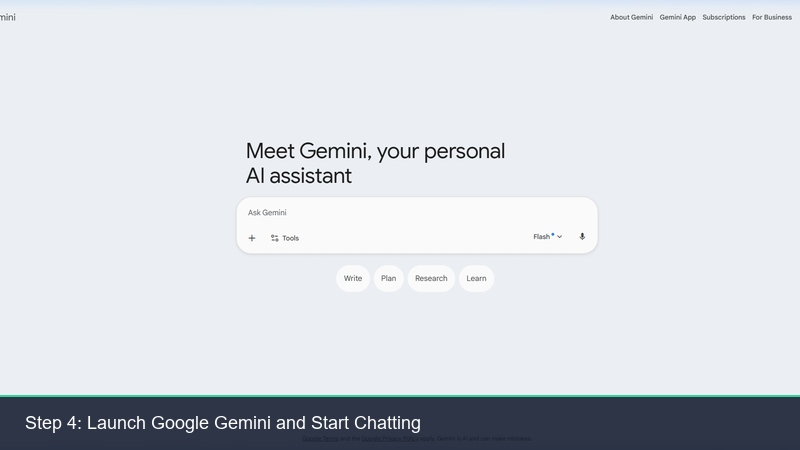
1. Open Gemini Web UI
Go to https://gemini.google.com and sign in with your Google account.
2. Start a Conversation
Generate some content or open an existing chat. For example, ask Gemini: “Write a Python script to monitor a directory for file changes and log them.”
Once Gemini generates the response, look at the bottom toolbar of the chat window or the extension popup icon in the browser toolbar.
3. Choose Your Export Format
Click the extension button. You will be presented with a clean user interface giving you two export options:
- Export to Markdown (.md): Highly recommended for Obsidian or Notion. This saves the entire conversation, mapping user prompts as headings and AI outputs as regular text block descriptions with correct code fences.
- Export to JSON (.json): Best for developers who want to parse the prompt-response arrays programmatically or build custom semantic search databases.
Click your preferred option, choose the save location on your local drive, and the file will download instantly!
Advanced Workflows: Integrating with Your Obsidian Vault
Once you download your Gemini conversations as markdown files, you can supercharge your productivity by syncing them directly to your personal knowledge base.
Option A: The Desktop Vault Drop
Save the exported .md file directly into your Obsidian Vault folder. Obsidian will automatically parse the file, index the terms, and display the layout with full syntax highlighting for code blocks. You can then use Obsidian’s internal links ([[note-name]]) to connect the AI advice to your active projects.
Option B: Building a Prompt Library
Create a folder named Gemini Archive in your vault. Every time you solve a tough engineering bug or write a successful marketing copy, export the chat. Over time, you will build a proprietary, fully searchable local library of successful prompt structures and code snippets.
This workflow is a perfect companion to our Markdown Second Brain guide and fits naturally into a high-productivity Developer Code Vibe. To automate prompt queues at scale, see the Gemini Autopilot Guide, and if you also use Anthropic’s models, check out the Claude Conversation Downloader Guide to build a unified cross-platform workspace.
Security & Privacy: Local-First Commitment
We live in an era where data privacy is paramount. Many cloud-based exporters require you to sync your chats to their remote databases. This exposes your proprietary code, business outlines, and personal ideas to external storage vulnerabilities.
The Gemini Conversation Downloader is built on a strict Local Storage Only architecture:
- Zero External Calls: The extension acts as a client-side parser. It reads the DOM elements of the chat tab, formatting them on-the-fly, and triggers the browser’s native download API.
- No Tracking: No tracking scripts, Google Analytics, or third-party cookies are integrated into the package.
- Enterprise Safe: Safe for corporate developers who need to document AI assistance without violating company intellectual property rules.
FAQ (Frequently Asked Questions)
Q1: Does this extension support exporting images generated by Gemini?
Yes. Any images or visual media files referenced in the chat will be embedded as standard markdown image links () pointing to Google’s hosting endpoints, ensuring your markdown renders them correctly when connected to the internet.
Q2: Can I download extremely long conversations?
Absolutely. The parser is optimized to handle infinite-scroll chats without lagging. It compiles the DOM sequentially and outputs a unified file.
Q3: Is Microsoft Edge or Brave supported?
Yes! Since Edge, Brave, and Opera are built on the Chromium engine, they fully support Chrome Web Store extensions. Simply click the “Add to Chrome” button from those browsers.
Summary of Benefits
| Feature | Browser Default | Gemini Downloader |
|---|---|---|
| Export Format | Copy-Paste | Markdown / JSON |
| Code block formatting | Lost / Messy | Maintained with syntax highlighting |
| Speed | Manual copy (slow) | 1-Click download (instant) |
| Privacy | Cloud dependent | Local-only |
Start backing up your AI conversations today. Head over to the Chrome Web Store and add the Gemini Conversation Downloader to your workspace.
Tags